

How to Make GIFs with ChatGPT (GPT Image 2.6 Guide)
Learn how to make a GIF with ChatGPT using GPT Image 2.6. Try prompts, animate a photo, adjust playback speed, and save a looping GIF.
Yes, ChatGPT can now make animated GIFs directly. Describe a moving scene, ask for a looping GIF, and refine the result in the conversation. OpenAI introduced this capability with Images 2.6 on November 4, 2026, alongside improvements to image generation and editing.
Start small: a character waving, steam rising from a mug, or a surprised reaction. A single readable action is a better first project than a miniature movie.
How to make a GIF with ChatGPT
- Open ChatGPT and start a conversation.
- Ask for a looping animated GIF, naming the subject and its movement.
- Send the prompt and wait for the animation.
- Ask for a specific revision if needed.
- Open the generated GIF to adjust playback speed, save it, or share it.
OpenAI's November 4 release notes describe GIF creation as a gradual rollout. Access can differ between accounts.
Here is a short demonstration of the new image and GIF features:
Start with a prompt that describes motion
Try this original starter prompt:
Create a looping animated GIF of a tiny purple robot waving hello.
Use a square composition and a plain pale-yellow background.
The robot raises one hand, waves twice, then lowers it to its starting pose.
Keep the camera fixed and the robot's shape and colors consistent.
Make the movement easy to read. No text or camera cuts.
The useful part is the movement sequence: raise, wave, return. “A cute robot GIF” leaves most of the animation undecided. Naming the starting and ending pose gives the model a clearer target.
This GPT Image 2.6 example illustrates a compact action cycle: the character lifts the lantern, blinks, and lowers it. The robot prompt above is a separate idea you can try.
Turn a photo or sketch into a GIF
You can also upload a still image and ask ChatGPT to animate it. A drawing, mascot illustration, or product photo gives the animation a visual starting point.
For a first attempt, choose an image with one obvious subject. A mug on a table is easier to direct than a crowded café: you can ask for moving steam while keeping the cup, table, and background still.
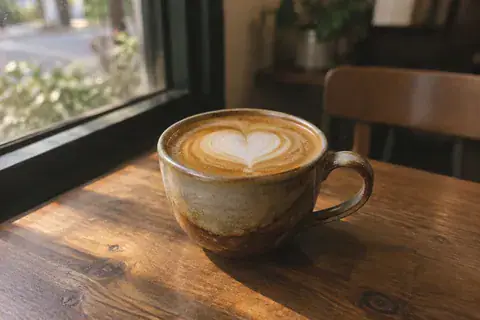
Try this prompt with your own coffee photo:
Turn this still photo into a looping animated GIF.
Animate only a thin curl of steam above the coffee.
Keep the cup, latte art, table, background, and camera stationary.
Use a small, gentle movement that repeats naturally.
Do not add text, new objects, or a zoom.
The still-and-motion pair shows the principle: give a small area the action and preserve a stable scene around it. These are example visuals, rather than results from the suggested prompt above.
For a sketch, replace the steam instruction with a simple gesture: “Make the character blink and tilt its head slightly, keeping the original drawing style.” Uploading an existing animated GIF is a different task: ChatGPT currently cannot edit that upload as an animation.
Improve the loop before you change the style
Watch the animation through several repeats. The first question is whether the action reads clearly; the second is whether the restart distracts you.
If a character ends on the opposite side of the image, the next repeat can look like a jump. Try a return movement:
Keep the same character and visual style.
Have the character return to its original position before the loop restarts.
Remove the sideways drift and keep the camera fixed.
If the motion feels busy, remove an action. A character that waves, jumps, spins, and celebrates gives you several things to repair. A single wave gives you one.
A greeting gesture can carry the whole animation. It does not need a background reveal or a second scene.
Playback speed and movement are separate decisions. A slower playback setting changes the pacing; it does not fix an arm that changes shape. For that, ask for a revision such as “Reduce the arm movement and keep the hand's shape consistent.” Change one problem at a time so you can judge whether the revision helped.
Three more ChatGPT GIF prompts to try
Use these as starting points. They describe intended results, not guaranteed outputs.
A reaction GIF for a group chat
Create a square looping animated GIF of a round blue blob reacting
with delighted surprise. Its eyes widen, it gives a small happy bounce,
then it settles back into its original pose.
Use a clean cream background, bold outlines, and no text.
Keep the character centered and the camera stationary.
A product photo with a moving highlight
Upload your product photo, then try:
Animate this product photo as a looping GIF.
Move a soft highlight gently across the surface and back.
Keep the product, packaging text, label, framing, and background unchanged.
Do not rotate the product, invent new lettering, or move the camera.
Inspect any label or logo after generation. If the lettering shifts, use a smaller highlight movement or simplify the effect. Treat “keep unchanged” as an instruction to check, rather than a promise of exact preservation.
A quiet illustrated scene
Create a looping animated GIF of a small illustrated lighthouse at dusk.
Only the lighthouse beam rotates; the building, sea, and clouds stay still.
Use a limited navy-and-gold palette and a fixed wide composition.
The beam should return naturally to its starting direction.
No text, cuts, or camera movement.
Why did ChatGPT give you a still image?
First check the request. “Draw a waving cat” could describe a single pose. Ask for an animated GIF with visible movement, then describe the action over time.
Also check the saved file. Some previews show only a thumbnail; open the downloaded result somewhere that plays animated GIFs before deciding that generation failed.
If you received a grid of pictures, ask again for one playable animation. A sprite sheet is a set of frames arranged in a still image. It is useful for some production workflows, but it is not itself a moving GIF.
Finally, check availability. A prompt cannot enable a feature that has not reached your account. OpenAI's Images in ChatGPT guide is the place to check the current creation, editing, and saving behavior.
Use a dedicated workspace for repeated GIF creation
ChatGPT is useful when you want to develop an idea through conversation. For repeated text-to-GIF tasks, you may prefer a form with visible settings.
AI GIF Gen is a browser-based workspace for creating animated GIFs. Its text-to-GIF tool uses GPT Image 2.6 Flare and brings the prompt, aspect ratio, playback speed, quality, and credit cost into one workflow.
Paste one of the text prompts above, start with a square composition, and review the displayed credit cost before generating. Keep the wording steady while you compare settings; otherwise, you are changing the idea and the setup at the same time.
The tool has its own account and credit system. Its controls and model selection are separate from ChatGPT's interface.
Frequently asked questions
Can ChatGPT make GIFs for free?
OpenAI lists ChatGPT Images across all tiers, including Free. GIF rollout and account usage limits still apply; free access does not mean unlimited generation.
Do I need Python or a separate GIF converter?
For ChatGPT's native GIF workflow, you can request the animation directly. Frame assembly or a converter is useful when you specifically want to work from separate images or another media format.
Is GPT Image 2.6 the same as a ChatGPT subscription?
No. ChatGPT is the app you use for the conversation. GPT Image 2.6 is the image-model family; OpenAI offers Flare and Sunburst variants through its API. A third-party tool's model choice does not describe your ChatGPT plan.
Can I set an exact frame count in ChatGPT?
Do not assume API parameters are ChatGPT controls. OpenAI documents frame count and per-frame timing in its image-generation API guide. In ChatGPT, describe the motion you want and use the available playback controls.
For your first GIF, pick one subject and one action. Get the movement working, check the restart, then refine the look. A small loop that reads clearly is already useful.