

How to Make a GIF from Text with AI
Learn how to make a GIF from text with AI: write a motion prompt, choose settings, generate, preview, fix the loop, and download your animated GIF.
To make a GIF from text with AI, describe a subject and its movement, choose your settings, generate the animation, then preview and download the GIF. You can start with words alone: no photo, video clip, or hand-drawn frames required.
The part that needs the most thought is the movement. “A monkey holding a lantern” describes a picture. “A monkey lifts a lantern, pauses, then lowers it to its starting position” gives the animation something to do.
This walkthrough follows that lantern idea from the first prompt to the saved file, with a check for the moment where the loop starts again.
How to make a GIF from text, step by step
For this example, the goal is a small monkey standing outside a snowy cabin, lifting a glowing lantern and lowering it again. The character stays in place, the camera stays still, and the movement returns to its beginning.
You can replace the monkey with another character later. For the first attempt, keep the subject and action consistent so you can tell which changes help.
Step 1: Choose one action that can repeat
Write the idea as a short sequence:
- The monkey holds the lantern low.
- It lifts the lantern slightly and pauses.
- It lowers the lantern to the opening position.
That final movement matters. If the monkey raises the lantern and leaves it there, the next repeat may snap back to the lower position.
Keep the rest of the scene quiet. Walking through the snow, opening the cabin door, and waving at the camera would turn a small loop into several separate tasks. Save those ideas for another animation.
Step 2: Turn the idea into a motion prompt
A useful prompt covers five things: subject, action, appearance, setting, and what stays still. For a repeating animation, add the return movement too.
Paste this original starter prompt into your generator:
Create a looping animated GIF of a small monkey in a green winter coat,
standing outside a wooden cabin in the snow at dusk.
The monkey slowly lifts a glowing lantern a little, pauses briefly,
then lowers it to the same position it held at the beginning.
Use a softly illustrated look with warm lantern light and cool blue snow.
Keep the monkey centered, its feet planted, and the camera fixed.
Keep the coat, face, lantern shape, cabin, and background consistent.
No text, camera cuts, zoom, or extra characters.
The animated reference below illustrates the lift-and-return movement. It is a separate example, rather than an output from this starter prompt; your generated character and scene will differ.
Watch the lantern through a complete repeat. Its return gives the animation a rhythm that a one-way movement would lack.
You do not need elaborate technical language. “Feet planted” and “camera fixed” are useful because they describe visible behavior you can check in the result.
Step 3: Open the generator and choose your settings
Open AI GIF Gen’s Text to GIF tool, select Text to GIF if needed, and paste the prompt into Describe your GIF. This mode generates an animated scene from your description, without requiring an uploaded image.
For the lantern example, use this starting setup:
| Setting | Choose | Why start here? |
|---|---|---|
| Canvas ratio | 1:1 | A square gives the character and lantern room without needing a large scene. |
| Playback speed | Standard | Establish the movement before experimenting with faster or slower playback. |
| Quality | Medium | Use a consistent starting quality while you work on the action. |
| Visual direction | Leave unselected | Let the illustrated look in the prompt guide this first attempt. |
The tool also offers visual directions such as Cinematic and Anime. You can explore them after the motion works. For now, changing the prompt and several settings at once would make the result harder to judge.
Playback speed controls how quickly the animation plays. Choosing Fast is not a request for a shorter generation wait.
Sign in before generating and check the credit cost shown on the Generate GIF button. Generation uses account credits; review the quote again whenever you change the setup.
Step 4: Generate the animation
Check that the prompt still includes both halves of the action: lift the lantern, then lower it. Click Generate GIF once.
The result area displays a progress state while the request is submitted and processed. Wait for your generated animation to appear in Your GIF. The example animation visible before you submit is a preview reference, not the result of your prompt.
If the interface shows Checking your generation, use Check this request to check the existing request. Avoid submitting a fresh copy while the original request is still being confirmed.
Step 5: Preview more than one repeat
A pleasing first frame does not tell you whether the animation works. Watch several repeats, paying particular attention to the restart.
For the lantern scene, check these details:
| Check | What to look for |
|---|---|
| Clear action | The lantern visibly rises and lowers, rather than the whole image simply shifting. |
| Stable character | The face, hands, coat, and feet remain recognizable throughout the movement. |
| Quiet background | The cabin stays in place and the camera does not unexpectedly zoom or pan. |
| Consistent object | The lantern keeps its shape and remains in the same hand. |
| Loop restart | The ending pose is close enough to the opening pose that the restart is not distracting. |
Also view it at roughly the size you intend to use. A tiny gesture that looks clear in a large preview may disappear when the GIF is displayed in a chat or a small page element.
Step 6: Fix one problem, then generate another version
Suppose the monkey looks right, but the lantern moves too far and the restart jumps. Keep the same ratio, speed, and quality. Replace the prompt with a more restrained version:
Create a looping animated GIF of a small monkey in a green winter coat
outside a snowy wooden cabin at dusk, holding a glowing lantern.
Make only a very small up-and-down movement with the lantern.
End with the lantern and arm in their opening positions.
Keep the monkey's feet, head, body, face, coat, cabin, and camera still.
Preserve the softly illustrated look, warm lantern light, and blue snow.
No extra gestures, new objects, text, cuts, or camera movement.
This is a replacement prompt for a new generation. It does not rely on the tool remembering your previous result, and it does not guarantee that the next character will look identical.
Match the revision to the problem. If the arm changes shape, reduce the arm movement. If the cabin drifts, reinforce the fixed background. If the action is clear but feels rushed, try Slow playback on the next generation.
Changing the speed cannot repair a distorted hand or an inconsistent lantern. Those problems need a simpler action or a revised description.
Step 7: Download and check the saved GIF
Once you are satisfied with the preview, use Download GIF on the generated result. Save it with a name you will recognize, such as monkey-lantern-loop.gif.
Open the saved file in a browser or another viewer that supports animated GIFs. Confirm that it moves, shows the intended version, and repeats as expected. A file manager may display only a thumbnail, so a still thumbnail alone does not mean the animation failed.
Finally, try it in the place you intend to use it. Check that destination’s file-size and format requirements rather than assuming every website or messaging app handles uploads the same way.
Save the working prompt alongside the file. If you later want a different coat color or setting, you can start from the version whose movement you already liked.
Text to GIF vs. an Animated Text Maker
The word “text” describes two different starting points. In AI Text to GIF, your words are instructions for an animated scene. In a traditional Animated Text Maker, the words themselves appear on screen and move.
| Your goal | The relevant workflow |
|---|---|
| Describe a monkey lifting a lantern and generate that scene | AI Text to GIF |
| Make “Happy Birthday” bounce or sparkle | Animated Text Maker |
| Make a sentence appear with a typewriter effect | Animated Text Maker |
| Describe a character’s reaction without displaying any words | AI Text to GIF |
For the lantern tutorial, the prompt becomes the character, setting, and action. It is not displayed as a caption.
If the exact spelling, font, spacing, or timing of a message is the main requirement, choose a text animation editor with those controls. If the main requirement is a scene you can describe, the text-to-GIF workflow fits the task.
What if you get a still picture or a grid of frames?
A still illustration, a sprite sheet, and an animated GIF are different outputs. Adding “GIF” to a filename does not turn a still image into an animation.
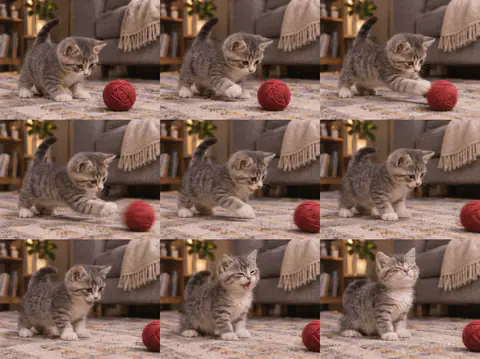
This grid shows several moments at once. A playable animation displays frames in sequence; the grid itself remains a still image.
For the workflow above, keep Text to GIF selected and describe an action over time. Do not ask for a “three-by-three grid,” “storyboard,” or “sprite sheet” unless you specifically want separate frames to assemble elsewhere.
If a generated preview does not load, use Reload preview before requesting a replacement animation. A preview-loading problem and an unsatisfactory generated movement call for different actions.
Start your next GIF with a smaller idea
After completing the lantern loop, change one part of the working prompt: the subject, the setting, or the movement. A small robot lifting a flower follows the same basic pattern. A boat rocking gently needs a different subject but still benefits from a fixed camera and a return movement.
The useful habit is the same each time: describe one action, generate a version, watch the restart, and save the result that works. Once the movement reads clearly, you have a solid starting point for exploring the style.